Login
Login with company code
Before you start: if you don't know what your company code is, ask your manager.
To login with your company code enter it in the field and tap the  button.
If your login screen looks like this:
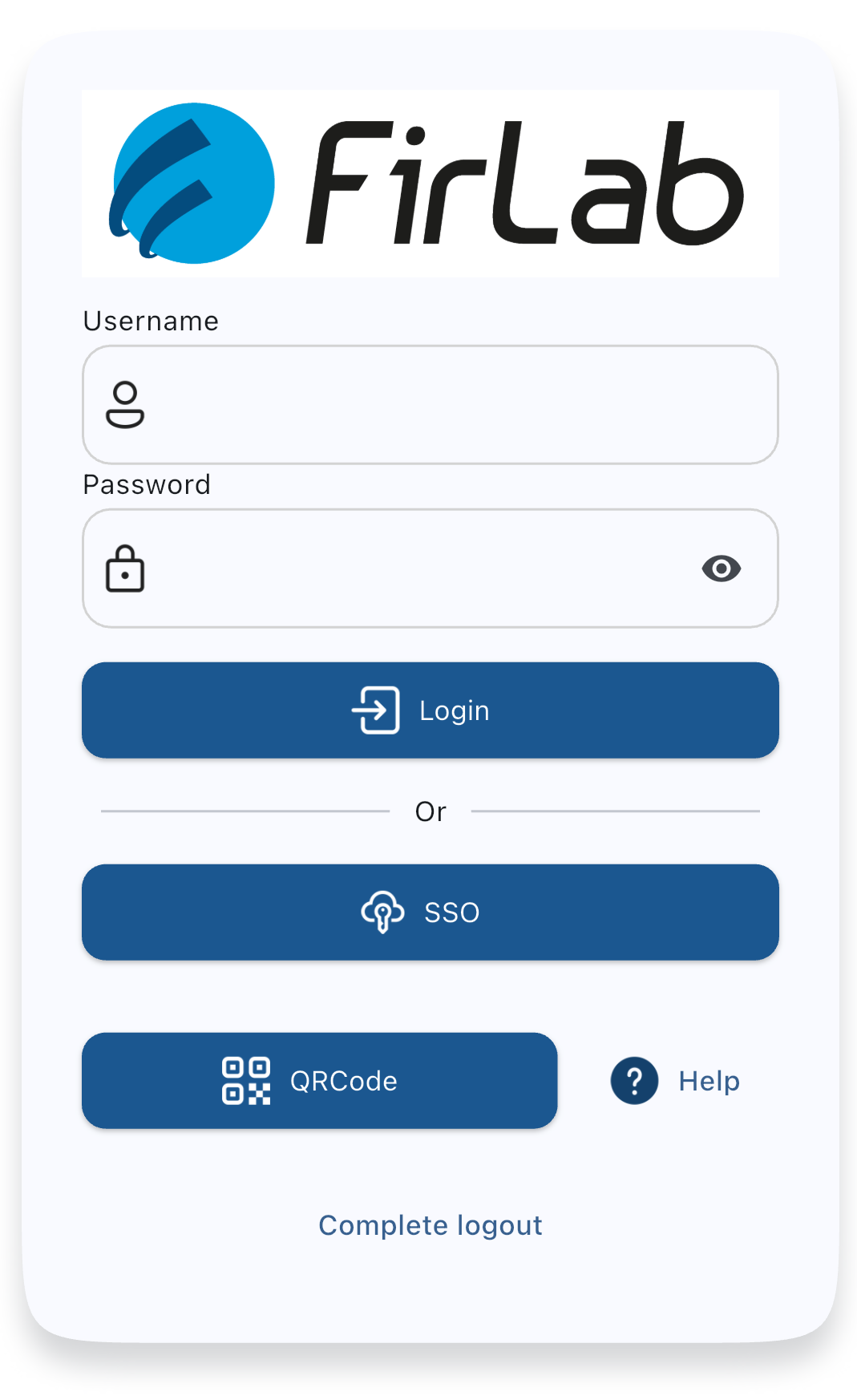
Enter your username and password and tap the  button.
If you see the  button, by tapping it you can login using your company's identity system.
If you see a different login screen then the access to the app is managed by your company: they will provide your credentials, and if you have any issues you'll need to ask your manager or your company's IT department.
Login with QR Code
If you already used StaffRoster from a computer you can log in with the QR Code.
To generate a QR Code from a computer, click on the  button on the top left of the screen, then on MyStaffRoster, on App, and on QR Code.
You'll see a screen that looks like this:
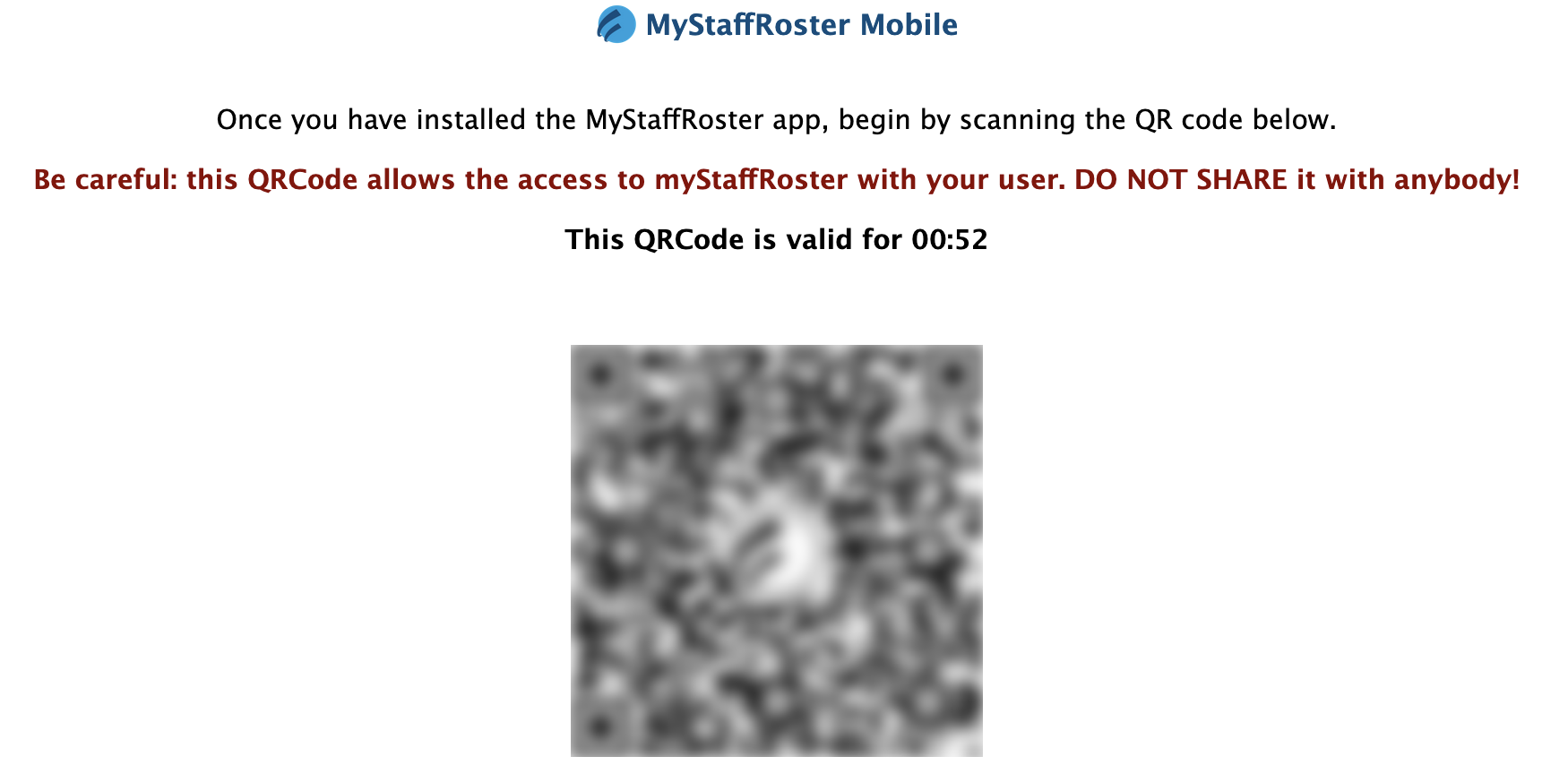
Open the app, tap on the  button, allow the app to use the camera if your phone requests access, and point the camera at the QR Code that you see on the computer screen.