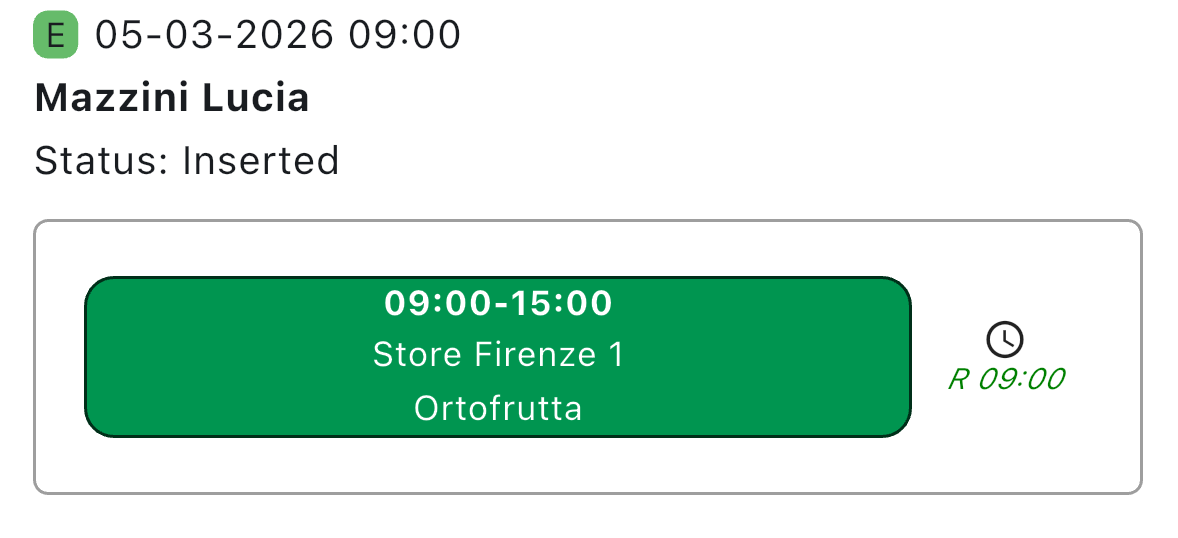
Manager
The date ranges never include the last day, so if you choose this date range:
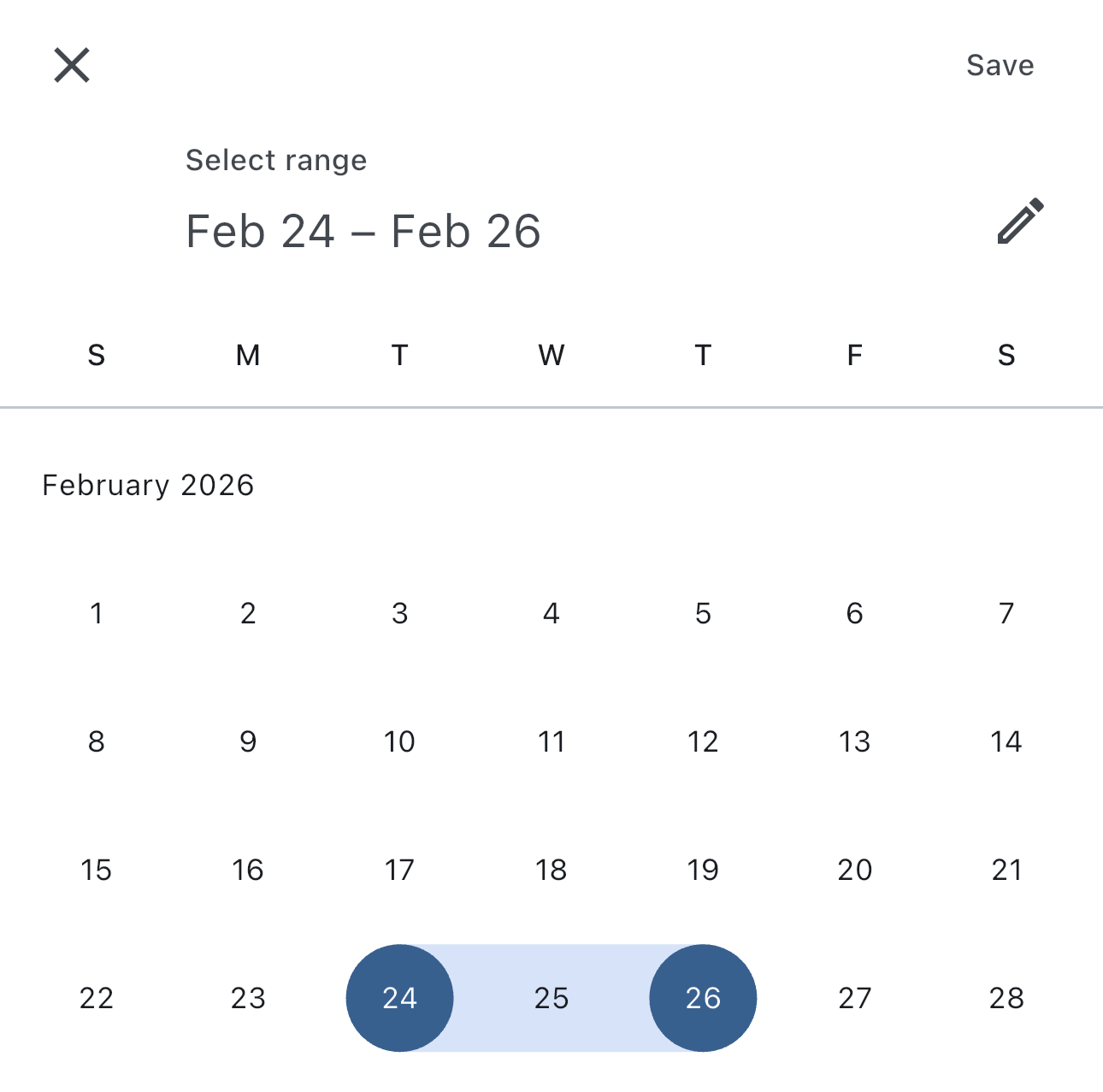
you'll choose a range from February 24th to February 25th.
This section contains manager-exclusive features only.
If a feature is also available to employees please refer to the "Employee" section.
We suggest reading the "Employee" section before this one.
Menu
The menu bar for managers looks like this:
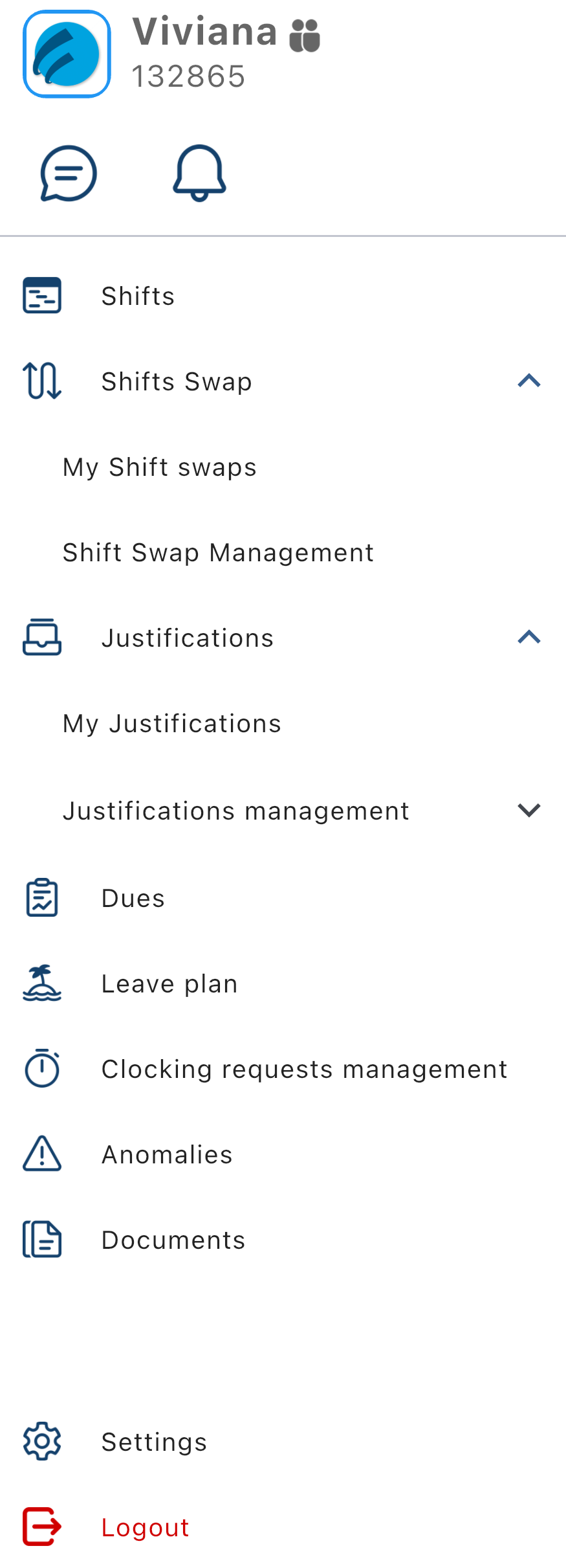
Depending on your company's policies, you may not see one or more menu items.
Starting from the top: if you have a multiuser account, which means that you can log in with more than one user with the same credentials, you will see the  button next to your name.
By tapping that button, a popup will appear at the bottom of the screen from which you can switch to another user:

Shifts
With this option you can see the shifts in all divisions you have access to. By tapping Shifts in the menu bar you will see a view from which you can choose for which division you want to see the shifts:
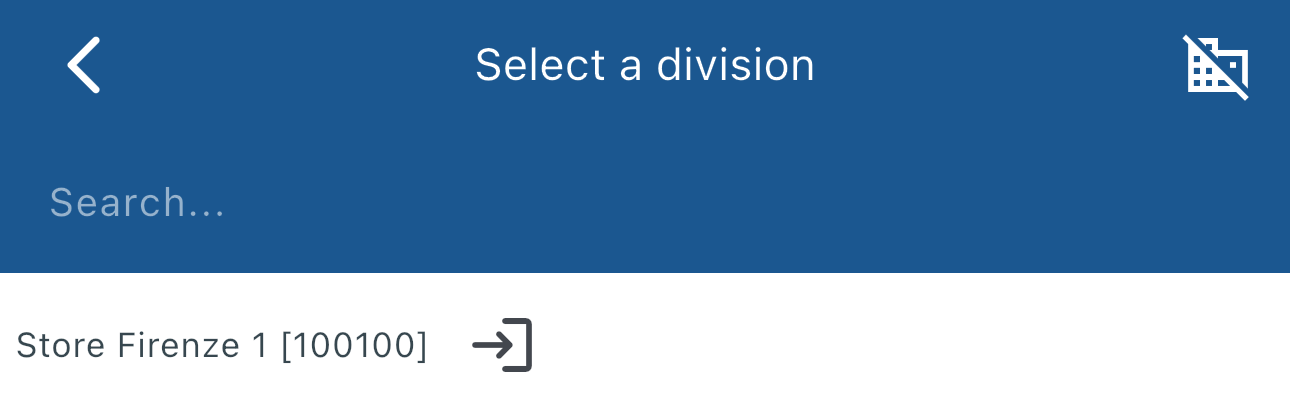
By tapping the arrows next to the date you can change the day.
Tap the  button to choose the division.
Once you select the division you will see this view with a list of shifts ordered by employee. You can order by time or location by tapping the buttons at the top of the view:
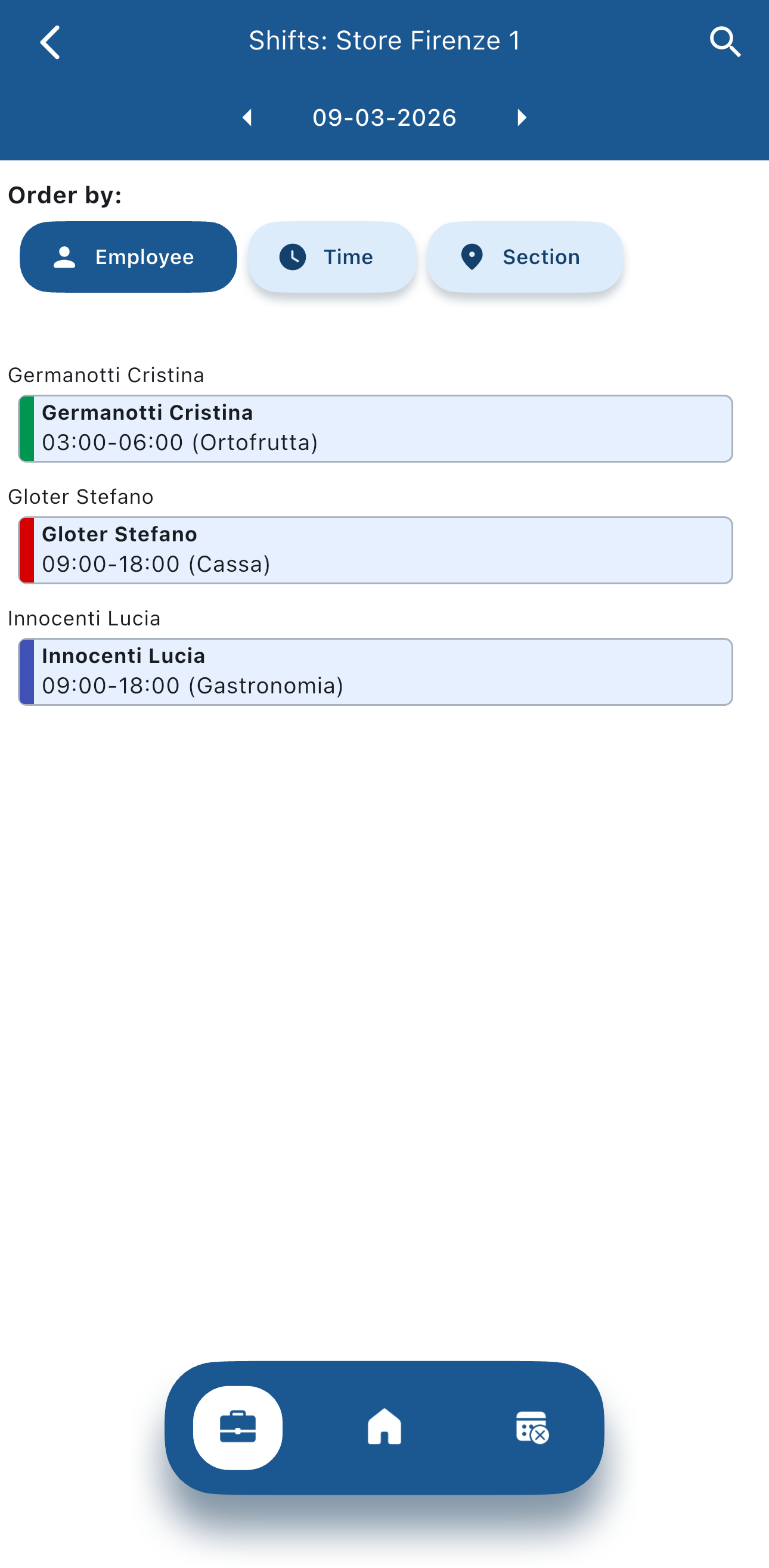
In the lower part of the screen, by tapping the  button you can see who has a leave shift, so they won't work today, and by tapping the
  button you can see who requested an absence for this day.
Shift Swap Management
This view allows you to manage the shift swaps requested by your employees. By tapping Shift Swap Management in the menu bar you will see a window from which you can search for shift swap requests:
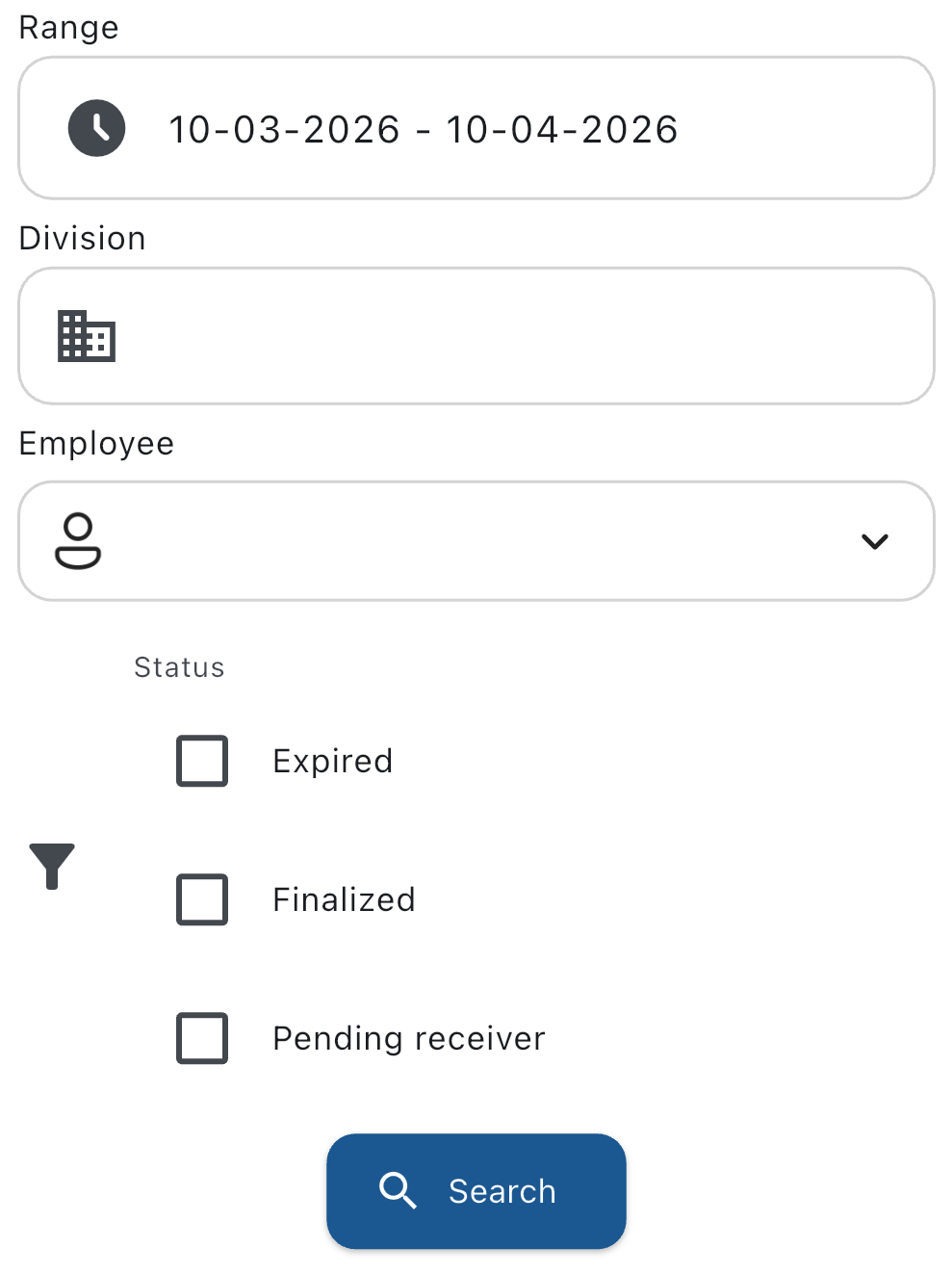
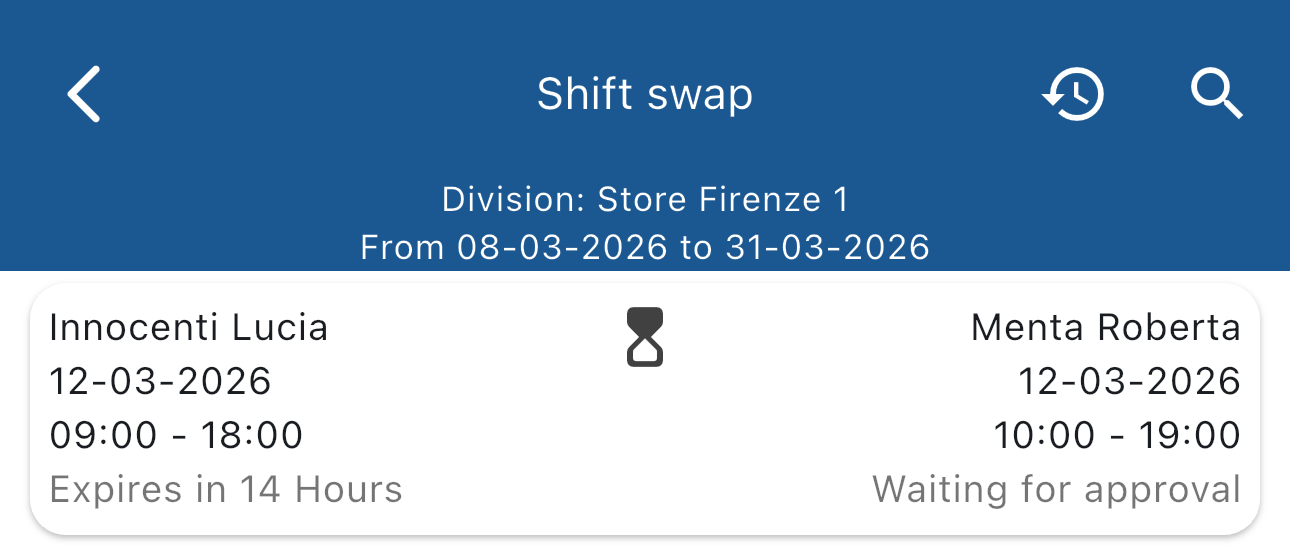
Once you filled in the date range, the division and the employee, tap the  button, and if there are shift swap requests you will see them in the list:
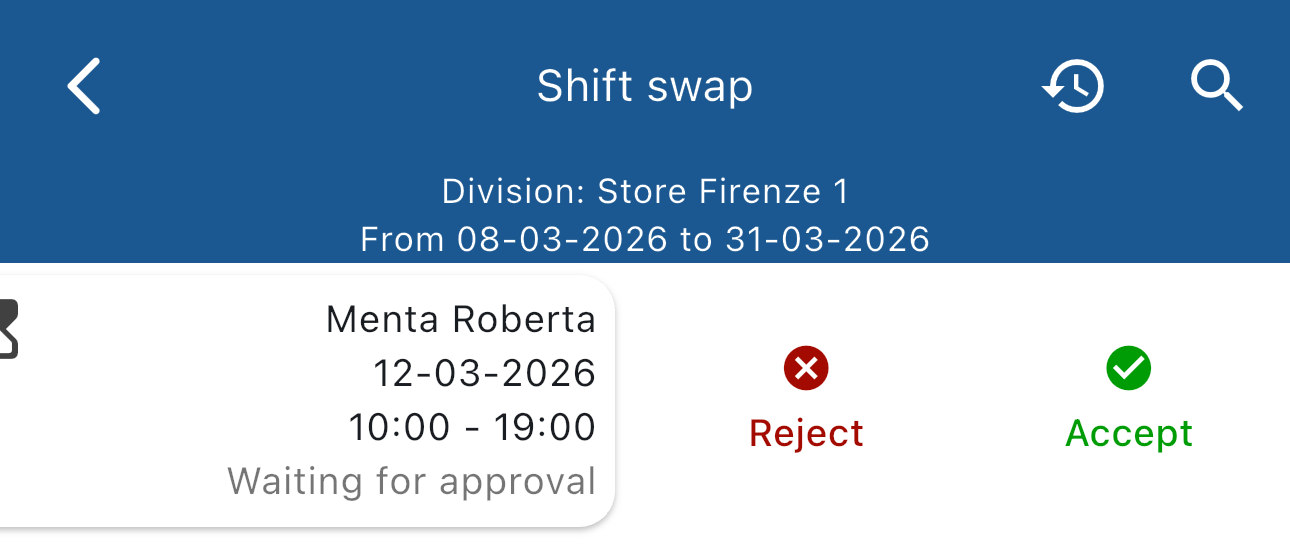
By swiping left on a request you will be able to accept or reject it:
Justifications management
From here, you can manage your employees' justification requests. By tapping Justifications management in the menu bar you will see a window from which you can search for justification requests:
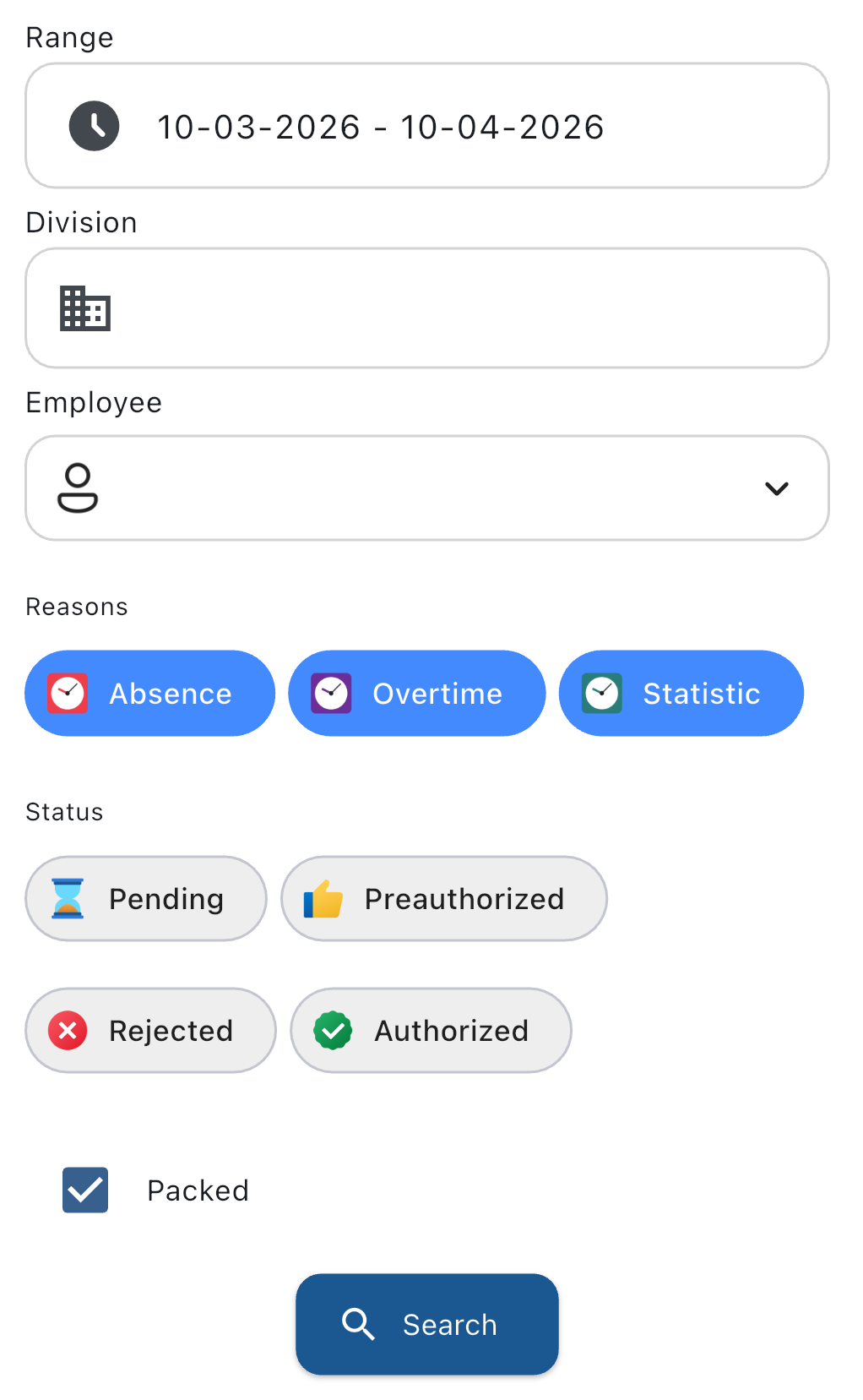
Once you filled in the date range, the division, and set the filters as you need, tap on the button and you will see the justification requests list:
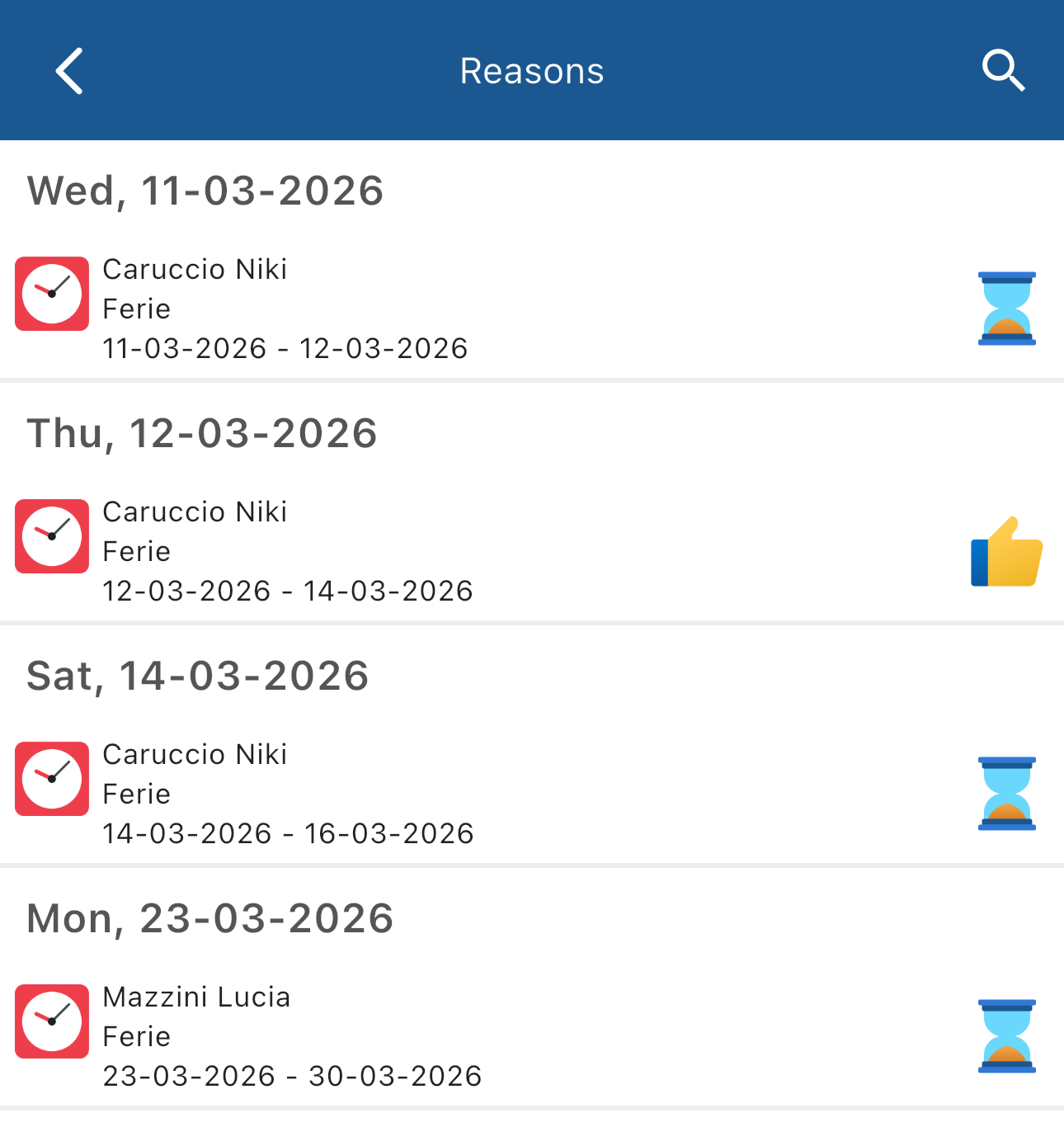
By tapping on a justification request you will get a detailed view from which you can decide to authorize, reject or preauthorize the justification:

Justifications managements also has two shortcuts: by tapping Pending in the future in the submenu you will see all the pending justification requests in the future. Same thing for the past by tapping Pending in the past.
Clocking requests management
With this view you can manage your employees' clocking requests. By tapping Clocking requests management in the menu bar you will see a window from which you can search for clocking requests:
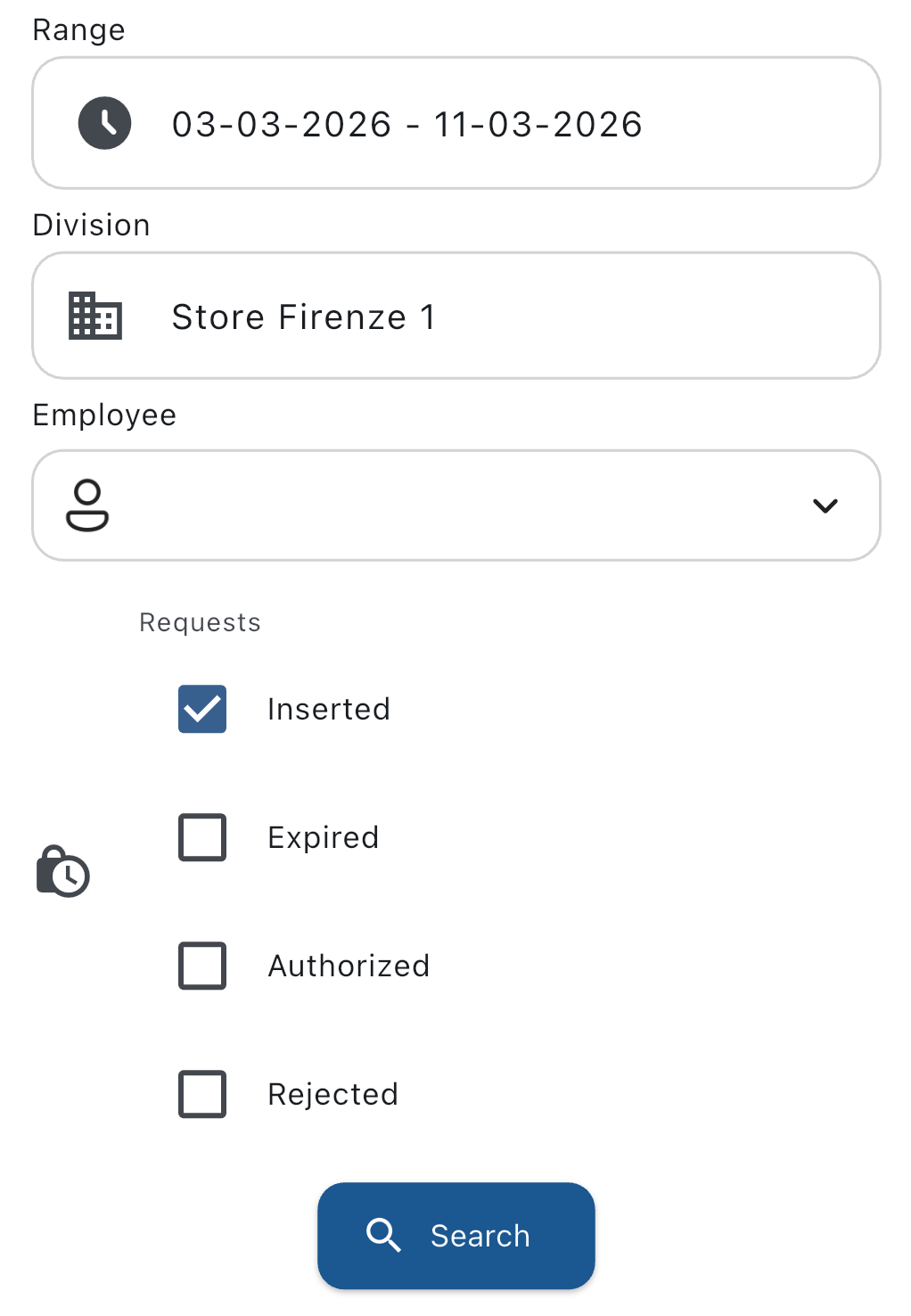
Once you filled in the date range, the division, and set the filters as you need, tap on the button and you will see the clocking requests list:
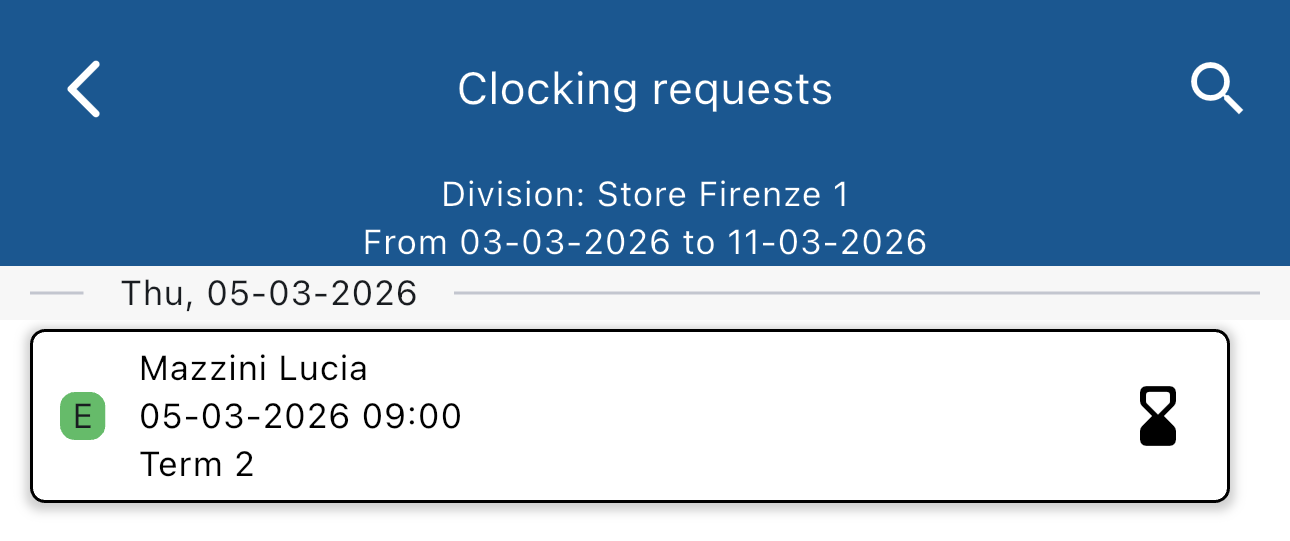
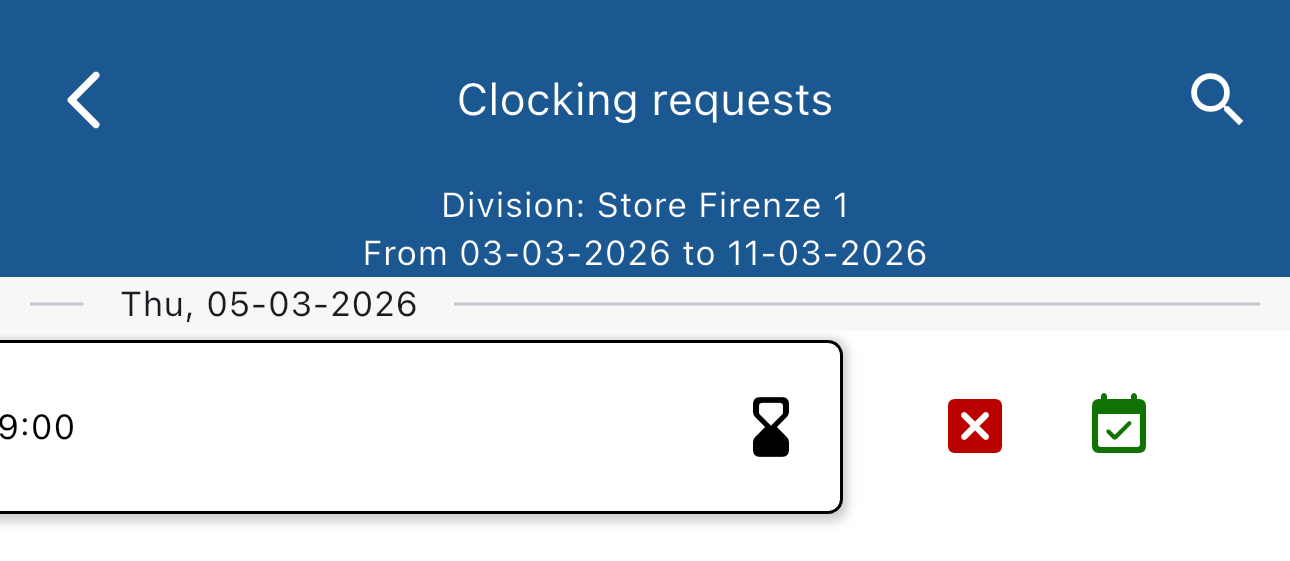
By swiping left on a request you will be able to accept or reject it:
By tapping on a clocking request you will get a detailed view: